
How to Push ChatGPT Beyond Basics with Its Newest Features
Learn to combine ChatGPT’s advanced tools for better results

ChatGPT usage is booming. It has 700M weekly active users! But after talking to people interested in learning how to prompt better and upskill with AI, I realized that many aren’t aware of some of its most powerful features.
In Part 1, I covered ChatGPT’s Canvas feature and how to use it for writing.
Here in Part 2, I’ll cover how to unlock a bit more magic with ChatGPT highlighting some of its newest features.
Make GPT-5 route to a reasoning model:
With the GPT-5 launch, ChatGPT now has a built-in system that decides which model to use, like a traffic director sending questions down the best path. Add the line “think harder” to your GPT-5 prompts to signal ChatGPT to switch to OpenAI’s reasoning model, which used to only be available in the paid version.
When to use it? Reasoning models tend to work better for tasks like strategy review or analysis. They take longer but often have better results. While the GPT-5 router usually switches automatically for complex tasks, the system is still evolving, so knowing how to trigger it yourself is useful.
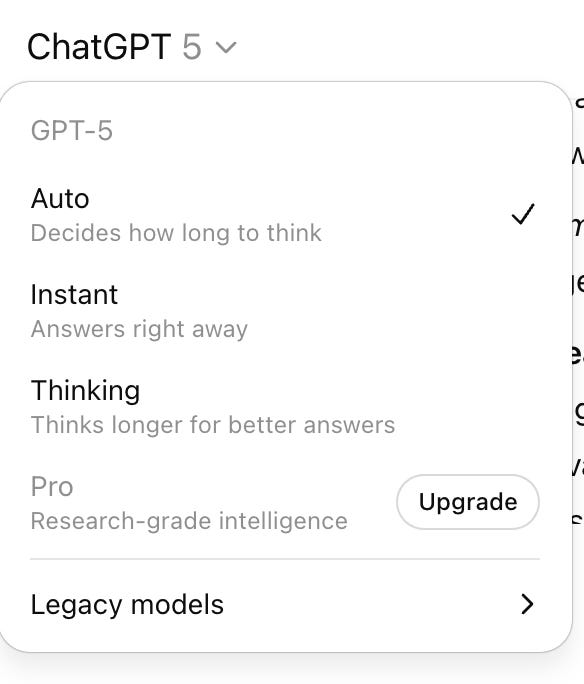
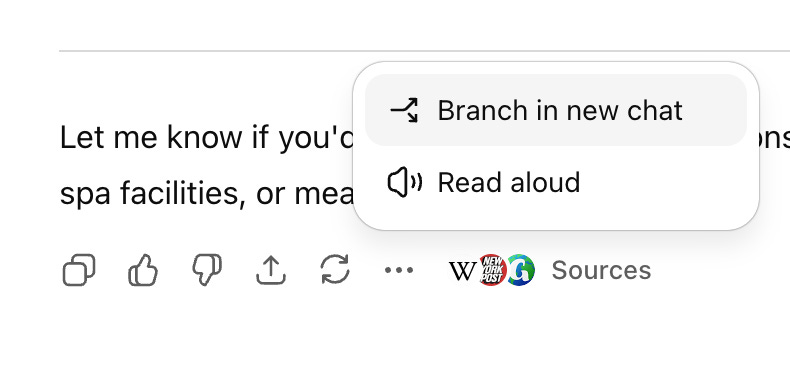
ChatGPT Plus users can pick their model but Free users only have the auto-router. The “Think harder” is a hack to push it to the “Thinking” model. Use ChatGPT’s new “Branch” feature: This feature just launched yesterday! It allows you to effectively duplicate your chat so that you can carry it forward in a different direction than your main chat.
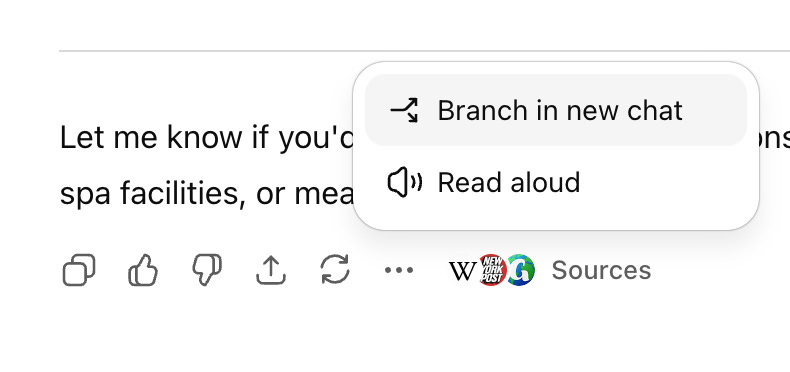
When to use it?
Explore something separately without losing the context of your first goal. For example, you want to create a day-by-day itinerary and ChatGPT asks if you want to find hotels and restaurants.
Split related topics when learning. For example, if you ask ChatGPT to learn about a new topic like AI evals and want to separately explore learning about benchmark and product evals.
Coding or prototyping tasks. ChatGPT can write code and create basic prototypes you can run in canvas. It’s helpful sometime to be able to branch that
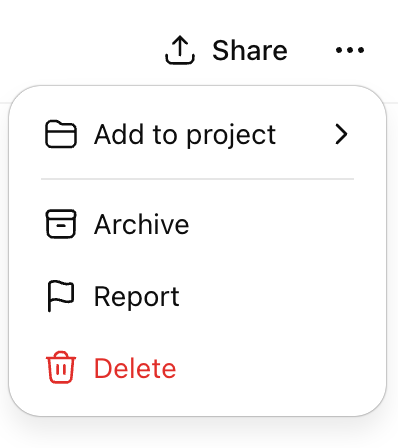
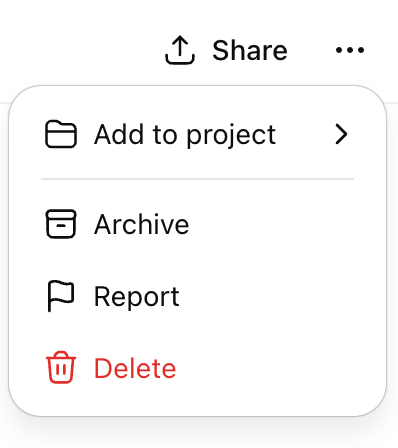
Try combining branching with one of my favorite ChatGPT features, Projects. With Projects you can add custom instructions that apply across all chats within the projects. For example, for a Trip Planning project I can create custom instructions that say “Always plan the trip considering a 40 year old couple with 2 young kids”.
When to use it? One promising workflow is branching related topics to have dedicated chat for each and then moving them all into a Project. This allows them to be grouped together and use custom instructions to guide them in one direction if needed (e.g. Trip planning, Evals learning).
Take these features for a test drive and let me know what you think.
I like projects so far. My main gripe is that I wish they could be shared within other members of my team.